WordPress rebuilds every page from its database on each visit, which is why caching is usually the biggest speed win available without changing hosting. A caching plugin stores the finished page and serves that instead. It can also break carts, logins and forms if those pages are cached, so exclude them.
On this page ▾
A slow website costs you visitors, rankings and sales. If pages take several seconds to load, or navigation between them feels sluggish, most people will leave before they see what you have to offer. Fixing that does not always mean upgrading your hosting plan or rewriting your theme. Learning how to speed up WordPress comes down to cutting page load time and lifting overall site speed, and for most WordPress sites, caching is the most effective place to start.
What is caching and why does it matter for WordPress?
Caching is the process of storing frequently accessed data so it can be retrieved without regenerating it from scratch on every request. For WordPress, this matters more than it might for a static site. WordPress content lives in a MySQL database, which gets queried every time someone loads a page. Scripts and images add further requests on top of that. Under any meaningful traffic, those repeated queries add up and drag down WordPress site speed.
A caching system identifies the content that gets requested most often and generates static copies of it. When the next visitor arrives, the server delivers the preloaded version rather than querying the database or executing PHP. Loading speed improves, WordPress website speed climbs without any change to WordPress core, and the server handles more traffic without breaking a sweat.
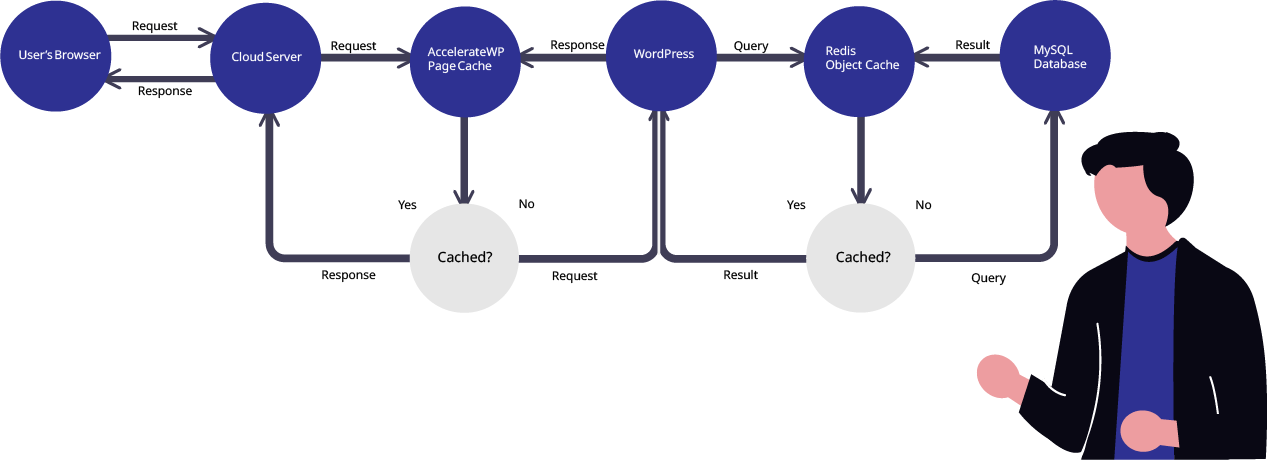
There are several distinct types of caching worth knowing about. Each one targets a different part of the request chain.
- Page caching
- Stores the full HTML output of a page as a static file. Effective for content that does not change often, such as blog posts or landing pages.
- Object caching
- Stores the results of database queries, such as product descriptions or user reviews, so they do not need to be fetched again on the next request. Particularly useful on high-traffic sites with frequently accessed dynamic content.
- Browser caching
- Instructs visitors’ browsers to store static assets like images, CSS and JavaScript files locally. Return visitors load those assets from their own device rather than downloading them again.
- Server-level caching
- Managed at the server rather than within WordPress itself. Nginx reverse proxy caching is one example, storing full-page responses before they reach PHP at all. This is the fastest option available.
What a caching plugin actually gives you
Beyond raw speed, a well-configured caching setup has a few knock-on effects that are worth understanding before you choose a plugin.
- Faster load times. Static content is delivered without waiting for database queries or PHP execution, so pages appear sooner.
- Better user experience. A faster site keeps visitors engaged and reduces the chance they leave before the page finishes loading.
- Improved SEO. Page speed is a ranking factor that feeds your SEO rankings and overall site performance. Core Web Vitals, which Google uses to assess page experience, are directly affected by load times. If you are working on improving your site’s SEO, caching is one of the more reliable levers you can pull.
- Reduced server load. Serving cached pages means the server does less work per visitor, which matters during traffic spikes.
When caching causes problems rather than solving them
Caching is not appropriate for every page or every situation. Pages with dynamic, user-specific content are a poor fit. A checkout page, for example, should never be cached. If it were, there is a real risk that one user’s session data could be served to another visitor, creating a serious privacy and security issue.
Running multiple caching plugins at the same time is another common source of trouble. On shared hosting, server-level caching systems are already running. Adding a plugin on top of those can produce duplicate caches, excessive file generation and stale data that refuses to clear. The result is often slower performance than you started with, plus unpredictable behaviour that is difficult to diagnose. One caching solution, configured correctly, is always preferable to several competing ones.
Choosing a WordPress caching plugin
The most widely used caching plugins include WP Rocket, W3 Total Cache, WP Super Cache, WP Fastest Cache, Hummingbird and NitroPack. Most are either freemium or paid, and the costs can add up. WP Rocket, for instance, is a capable plugin, but its lifetime licence has been discontinued, meaning it now carries an ongoing annual subscription cost. A free plugin like WP Super Cache tends to lack features found in the premium version of others, such as minification or lazy loading for images, which advanced users often want. Whichever WordPress plugin you pick, caching pages is its core job.

The plugin you choose should match your hosting environment. If your host already provides server-level caching, adding a plugin that duplicates that work creates more problems than it solves.
AccelerateWP: caching built into your hosting
AccelerateWP takes a different approach. Rather than being a third-party plugin you install and maintain separately, it is built into the hosting environment itself. That means it works alongside server-level caching rather than against it, and there is no additional licence to manage.
The caching features it covers include static HTML file caching, browser caching, user-specific content caching, mobile cache support, Redis Object Caching and pre-caching. You can enable and manage these from your WordPress dashboard without touching configuration files.
Tip: Redis Object Caching is particularly effective for WooCommerce stores and membership sites, where database queries for user-specific data are frequent. AccelerateWP supports Redis without requiring a separate plugin or server configuration.
The practical advantage over standalone plugins is that AccelerateWP does not add another layer of complexity to your WordPress installation. There are no plugin conflicts to manage, no separate update cycle and no annual subscription on top of your hosting costs.
Our WordPress hosting plans include AccelerateWP as standard. If you are already on a plan and want to get it running, the AccelerateWP setup guide in our knowledge base walks you through enabling it.
Caching does the heavy lifting, but a few other changes go further, improving site speed, delivering faster page load times across your web pages and lowering bandwidth usage. Treat these WordPress speed optimization steps as the next move once caching is in place. To speed up your WordPress further, WordPress performance optimization plugins such as WP-Optimize and other speed plugins can handle image compression and optimize database tables in a few clicks.
Beyond caching: other ways to speed up WordPress
- Compress your images. Large, high-resolution images are a common cause of slow website performance. Image optimization, paired with lazy loading so images load only as the user scrolls, cuts page weight sharply, and tools that compress images or convert them to WebP make it routine to optimize images at scale. Our guide to getting your images right covers modern formats like WebP.
- Clean up the WordPress database. Over time the WordPress database fills with post revisions, spam comments and leftover data. Clearing these, through database optimization and database caching, keeps database queries fast.
- Add a content delivery network. A CDN integration serves static assets from a location near each visitor, reducing load time for a global audience. See how much a free CDN can speed up your website.
- Minify CSS and JavaScript files. Stripping whitespace from CSS files shrinks them and trims external HTTP requests, so fewer round trips stand between a visitor and a finished page.
- Choose a lightweight theme. A bloated theme loads slowly however good your caching is. WordPress themes built for performance give you a faster starting point, and a responsive theme that prioritises mobile optimization helps your Core Web Vitals on phones.
- Pick good web hosting. Caching cannot fix a slow server. A fast hosting provider with enough server resources sets the ceiling for WordPress performance. Shared hosting suits smaller sites, while busier ones may need a VPS or dedicated server.
If you have questions about which caching setup is right for your site, ask the team and we can point you in the right direction.